Blog

  • 5 Must Reads to understand AngularJS Service and Factory difference

    As a beginner or intermediate, a lot of JavaScript developers tends to get confused between two most vital components of AngularJS – Service and Factory.

    Reason, both tend to do kind of similar job, well it looks like initially when we can’t really distinguish the proper usage. I too had these confusions and few of my colleagues happen to ask me this particular question often and often. So here I am, compiled the list of very good writings – this will give you a perfect answer on what are AngularJS Service or Factory, how to use them, what are the differences etc.

    1. Answer by Doug T on StackExchange
    2. Usage example by Gil
    3. A StackExchange Community Wiki 
    4. AngularJS: Factory vs Service vs Provider by Tyler (He has got a cool website, check that out)
    5. AngularJS Service vs Factory – video by DevelopMentor

    I hope, after going through those Q/As and the video if you were still in doubt – you have a clear picture of what Service and Factory are made for in AngularJS.

  • Context Menu using AngularJS Directive

    Since the SPA have emerged a lot in Web application market, creating MVC applications using Angular JS have become a mainstream trend.

    Here is something reusable for your Angular JS Application to speed up your development – a context menu directive.

    Check it out: Custom Context Menu Angular JS Directive/

    How to use?

    This directive is as simple as it could be. Plug the directive javascripts to you module.  Next assign the attribute to any HTML element.

    <button context-menu>Show Options</button>
    

    There is one required attribute ‘menu-items’ to pass your menu items.  This menu item has to be an Array of objects in your current scope with three properties. Example:

        //Menu Items Array
        $scope.menus = [
          {label: 'View',   action: 'callView',   active: true},
          {label: 'Delete', action: 'deleteItem', active: true},
          {label: 'Send',   action: 'sendItem',   active: false},
          {label: 'Share',  action: '',           active: true},
          {label: 'Active', action: 'deactivate', active: false}
        ];
    

    Object structure:

    • label: Text to show on Menu item
    • action: This is the method, that would be executed when clicked on particular item.
    • active: A boolean to toggle the disable/enable of particular item from menu. It doesn’t hide though.

    This array has to be accessible where the current context menu is being applied.  Then use that ‘menu-items’ attribute to pass the array reference:

    <button context-menu menu-items="menus">Show Options</button>
    

    And now the time to define your function, these function has to be within your scope chain and be accessible to be executed within scope.

        $scope.deleteItem = function(arg){
          console.warn('deleted ...')
        };
    
        $scope.callView = function(arg){
          console.info('View Call, another method')
        };
    

    That’s all. You have a working context menu. Any time a user right clicks within that element range – context menu show up.

    Other Options

    There are other features, optional to use.

    • Fix pointer for opening context menu

    If you wish your context menu to open always from a certain point, not where user has right clicked (cursor position) then all you gotta do is specify a pointer. For that you need an child element with your directive. Pass that element reference using pointer-node attribute. Example:

         <button context-menu menu-items="menus" pointer-node=".showHere">Show Options <span class="showHere">&gt;</span></button>
    

    I recommend using a class selector to pass the reference to directive as I have done above.

    Context Menu Behaviour

    Once the element is clicked, a dropdown context menu pop down right below it. But this context menu is space sensitive. What I mean by that is, by default the menu tries to open on bottom right side of the element but for some reason of menu detects that it might go outside of window then menu will automatically reposition itself on eight top left, top right, left top, left bottom. Hence when the menu appears it would never be hidden in browser. How do you like that :P?

    Full Code

    Source Code is available in Github:  https://github.com/shekhardesigner/Context-Menu-Angular-Directive

  • CSS3 Filter – Invert support in Internet Explorer 10+

    CSS3 introduced one of the very fancy features to do some creative things – “Filters”. Now we can make our images grayscale, blur it, change hues etc – everyone happy about it.

    Here is a list of the browsers that support this feature:

    1. Chrome (prefixed)
    2. Firefox
    3. Safari
    4. Opera

    and then we have Internet Explorer which still hasn’t put it on shipping list yet. At the time I am typing this – Internet Explorer 11 also doesn’t support CSS3 Filters.

    Statements from IE:

    Update: Microsoft Edge has shipped this feature as of Build 10586+

    I had a requirement to invert white images into the black. This was when the user switches themes on the website. Hence created this small useful plugin that takes the current image and uses SVG filter solution to invert it into the black.

    InvertImages

    Usage is pretty simple.

    Let us say you have an white image:

    <img src="images/icon-home.png" alt="Home Page" class="icon-home">

    And you wish to change this image into black, all you have to is:

    $("img.icon-home").invertImages();

    For more options, please read this Wiki:  InvertImages jQuery Plugin Wiki

  • IT FITs Version 2.0 – Our most popular responsive template

    It’s been a while but it’s here finally. Version 2.0 of our most popular HTML5 CSS3 Responsive Template.

    Major updates since last version:

    • Updated Typography
    • Added large display responsive support
    • Dropped IE8 and older support
    • Removed flashy transitions.

    DEMO

    If you find any issues and want more features, submit them here in Github – https://github.com/cssjunction/It-Fits

    DOWNLOAD

  • All Code hosting on Github

    We have moved our sharing code base on Github. Yes, you heard it right. Today we have completed all code transfers, including demo previews on Github.  This will help us going further track bugs/issues and help resolve in run time. Also the download links will always have the recent one.

    Find us on Github CSS Junction

    We have published following project on Github as of now:

    Happy coding!

  • How to set Cookies to share across all subdomains using JavaScript

    Browser Cookies, is a very handy feature that enables us as a web developer to do so many interactive programming. Recently since HTML5 raised up, its Web Storage is replacing this feature. But there is one area where Web Storage fails to achieve the result – subdomain access. There we have to again jump back for old school document.cookie method.

    In this very quick tutorial, lets discuss how we can setup browser cookies that can be accessed from all subdomains and root domain. But proceeding further requires basic knowledge of cookies, and if you need to learn, Tutorial Point has good article on JavaScript Cookies.

    Steps:

    1. Prepare the cookie name/value
    2. Get the top level domain and assign as .domain.com
    3. Set the path to root path=/
    4. Set Expires (optional)

    Lets set up a example cookie. Example take as ‘Last time report generated’ to showup across subdomains.

    
    //variables
    var LastReportGenerated="Jul 11 2013",
    baseDomain = '.expiredqueues.com',
    expireAfter = new Date();
    
    //setting up  cookie expire date after a week
    expireAfter.setDate(expireAfter.getDate() + 7);
    
    //now setup cookie
    document.cookie="Report={'ReportName':'MainReport', 'lastGenerated':" + LastReportGenerated + "}; domain=" + baseDomain + "; expires=" + expireAfter + "; path=/";


    Major thing to take care here is:

    Your domain must be in format of “.domain.com” – dot and root domain and your path=/ always. If you don’t setup your path=/, auto path will be saved as from where the cookies is being saved hence it wont be accessible across any subdomain.

    You can try copy paste code above in the Console, and see the result in Resource Panel. If you happen to successfully run the script above, you will get a preview:

    JavaScript Cookie

    Now that ‘Report’ cookie should be available across all subdomains like = main.cssjunction.com, tuts.cssjunction.com etc.

    You might be interested in:

  • Metro UI Form using HTML5 and CSS3

    Metro UI Form using HTML5 and CSS3

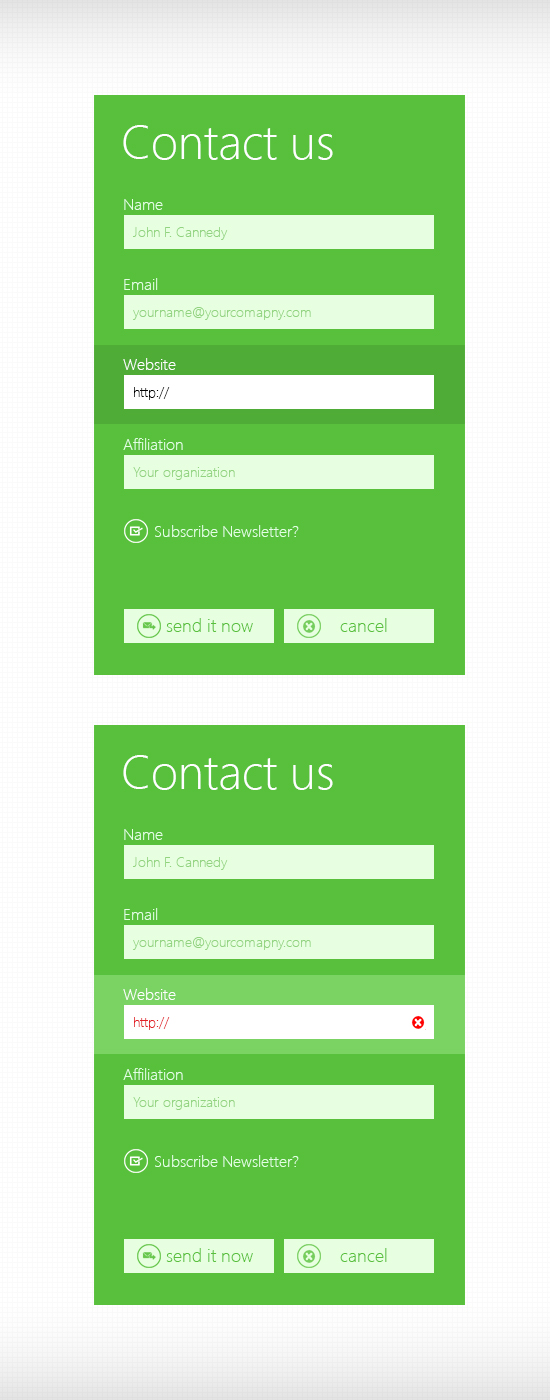
    Few months ago I had posted a PSD freebie for Metro UI Contact form. I received many requests saying for the HTML/CSS version of the same. So here is the form, coded using HTML5 and CSS3.

    A Quick preview:

    HTML/CSS Demo

    Metro Style Contact Form PSD

    Here you can download the HTML/CSS:

    Download

    Happy sharing!

  • CSS Icons for Better Web – Part I

    CSS Icons for Better Web – Part I

    Recently, I have been busy working on several mobile applications – both web and native apps. Most of them was User Centric and app was allowing them to set their own themes. This made my job as a CSS Developer a little trickier as I was using several icons with CSS sprites. Trying to come up with a better solution on how can I get rid of limited opportunity given by image sprites – I made a decision that CSS Icon should play the role here.

    Here is why I chose to do the same:

    • Very first, it’s very best for performance as there wont be any HTTP request and
    • CSS icons are modular – we can reuse and remake/style it based on condition.

    Today, I am going to share some of very basic icons – that we can create using CSS and use it right away- the way we wanted. This is a series of posts, will be posting more on coming days – more icons with CSS.

    Mean time, you can check CSS3 Document Icon, written by me for Nettus+.

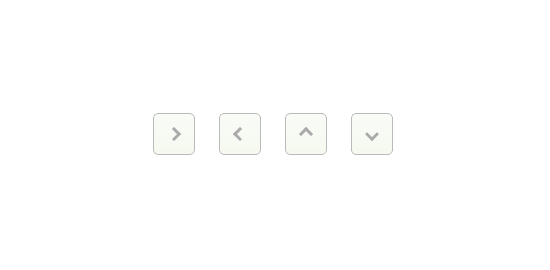
    Quick Preview

    Preview of CSS3 Arrow Icons

    Above preview, if you try to produce by using image icon – you gotta use 4 different images. But if you write by CSS, NO IMAGE is required. Even if you need to change the color and you did use image, you will need another set of images with color changed in Photoshop and reusing – causing bit more load to your page. By CSS – you can have as many colors as your want – much more efficient, efficient – that’s why I called it – CSS Icons for better web.

    How to  – Steps:

    1. A simple class with border on right & top – no background.
    2. Then Rotate it to different angles (45 for right, 135 for down, 225 for left and -45 for up.)

    Lets Do it.

    1. Any Element with Class .arrow

    <i class="arrow"> </i>
    

    Your CSS

    .arrow {
        display:inline-block;
        width:7px;
        height:7px;
        line-height:7px;
        border-top:3px solid #aaa;
        border-right:3px solid #aaa;
        -ms-transform:rotate(45deg);
        -moz-transform:rotate(45deg);
        -webkit-transform:rotate(45deg);
        transform:rotate(45deg);
    }
    

    Now create three more classes with different different rotation and apply to HTML along with the main class.

    .arrow-down {
        -ms-transform:rotate(135deg);
        -moz-transform:rotate(135deg);
        -webkit-transform:rotate(135deg);
        transform:rotate(135deg);
    }
    .arrow-left {
        -ms-transform:rotate(225deg);
        -moz-transform:rotate(225deg);
        -webkit-transform:rotate(225deg);
        transform:rotate(225deg);
    }
    .arrow-up{
        -ms-transform:rotate(-45deg);
        -moz-transform:rotate(-45deg);
        -webkit-transform:rotate(-45deg);
        transform:rotate(-45deg);
    }
    

    Changing the arrow color on HOVER, (See how easy – think what we used to do with images):

    .arrow:hover {
        border-color:#444;
    }
    

    You can see the final preview here (See in Result Tab):

    And Here is a useful demonstration, (using :after pseudo element instead of separate HTML element to keep markup clean and more semantic) (See in Result Tab):