Category: Tutorials

  • React Hooks explained

    React Hooks explained

    What are react hooks?

    Hooks are functions that allow developers to “hook into” React state and lifecycle features from functional components. They are called inside a function component to add React features to it.

    React Hooks are a feature introduced in React 16.8 that allow developers to use state and other React features in functional components. Prior to the introduction of Hooks, it was necessary to use class-based components to use state and other React features in a React application.

    Hooks are functions that allow developers to “hook into” React state and lifecycle features from functional components. They are called inside a function component to add React features to it. By using Hooks, developers can use state and other React features without writing a class component.

    There are several built-in Hooks that are provided by React, such as useState and useEffect.

    useState is a Hook that allows a functional component to have state. It takes an initial state as an argument and returns an array with two elements: the current state and a setter function that can be used to update the state. An example :

    import React, { useState } from 'react';
    
    function Example() {
      const [count, setCount] = useState(0);
    
      return (
        <div>
          <p>You clicked {count} times</p>
          <button onClick={() => setCount(count + 1)}>
            Click me
          </button>
        </div>
      );
    }


    useEffect is a Hook that allows a functional component to perform side effects. It takes a function as an argument and is called after the component renders. The function passed to useEffect will be called whenever the component is updated, similar to the componentDidUpdate lifecycle method in a class-based component. Here’s an example of how useEffect can be used to fetch data and update the state of a functional component:

    import React, { useState, useEffect } from 'react';
    
    function Example() {
      const [data, setData] = useState(null);
    
      useEffect(() => {
        fetch('https://www.expiredqueues.com/api/endpoint')
          .then(response => response.json())
          .then(data => setData(data));
      }, []);
    
      return (
        <div>
          {data ? <p>{data.message}</p> : <p>Loading...</p>}
        </div>
      );
    }
    

    Hooks provide a way to add state and other React features to functional components and can help make code easier to understand and maintain by reducing the need to use class-based components.

    So what are custom hooks?

    Custom React Hooks are functions that allow developers to extract reusable logic from components and share it across multiple components. They are a way to share behavior that can be defined using React Hooks, such as useState and useEffect, between multiple components.

    Custom React Hooks are created by defining a function that starts with the word “use” and performs some logic using one or more of the built-in Hooks provided by React. Let’s write an example of a simple custom hook that fetches data from an API and returns the data and a loading status:

    import { useState, useEffect } from 'react'
    
    function useFetchData(url) {
      const [data, setData] = useState(null)
      const [loading, setLoading] = useState(true)
    
      useEffect(() => {
        async function fetchData() {
          const response = await fetch(url)
          const data = await response.json()
          setData(data)
          setLoading(false)
        }
        fetchData()
      }, [url])
    
      return { data, loading }
    }


    This custom hook can be used in a component like this:

    import { useFetchData } from './useFetchData'
    
    function Example() {
      const { data, loading } = useFetchData('https://www.expiredqueues.com/api/data')
    
      if (loading) {
        return <p>Loading...</p>
      }
    
      return (
        <ul>
          {data.map(item => (
            <li key={item.id}>{item.name}</li>
          ))}
        </ul>
      )
    }


    In this example, the useFetchData custom hook is called inside the Example component to fetch data from an API and store the data and loading status in state. The hook returns an object with two properties: data and loading, which are destructured and used in the component to display the data or a loader component while the data is being fetched.

    Custom React Hooks can make it easier to reuse logic across multiple components and can help to make code more modular and maintainable. They can also make it easier to test and debug code, as the logic can be separated into individual functions that can be tested in isolation.
  • How to: delete node_modules folders in windows.

    Let us agree, we all have been there once in a while, messing up our hair while removing these long path issue with node_modules.

    For a while, I used to copy paste nested npm folders outside and try deleting again and again until I delete them all. I googled around and found few other tricks that does the job fairly, but after being so used to of Node workflow, I happen to find the easiest way. So here we is what you have to do.

    Enter npm prune

    All you got to do is remove the node_module listings from your package json and the run `npm prune`

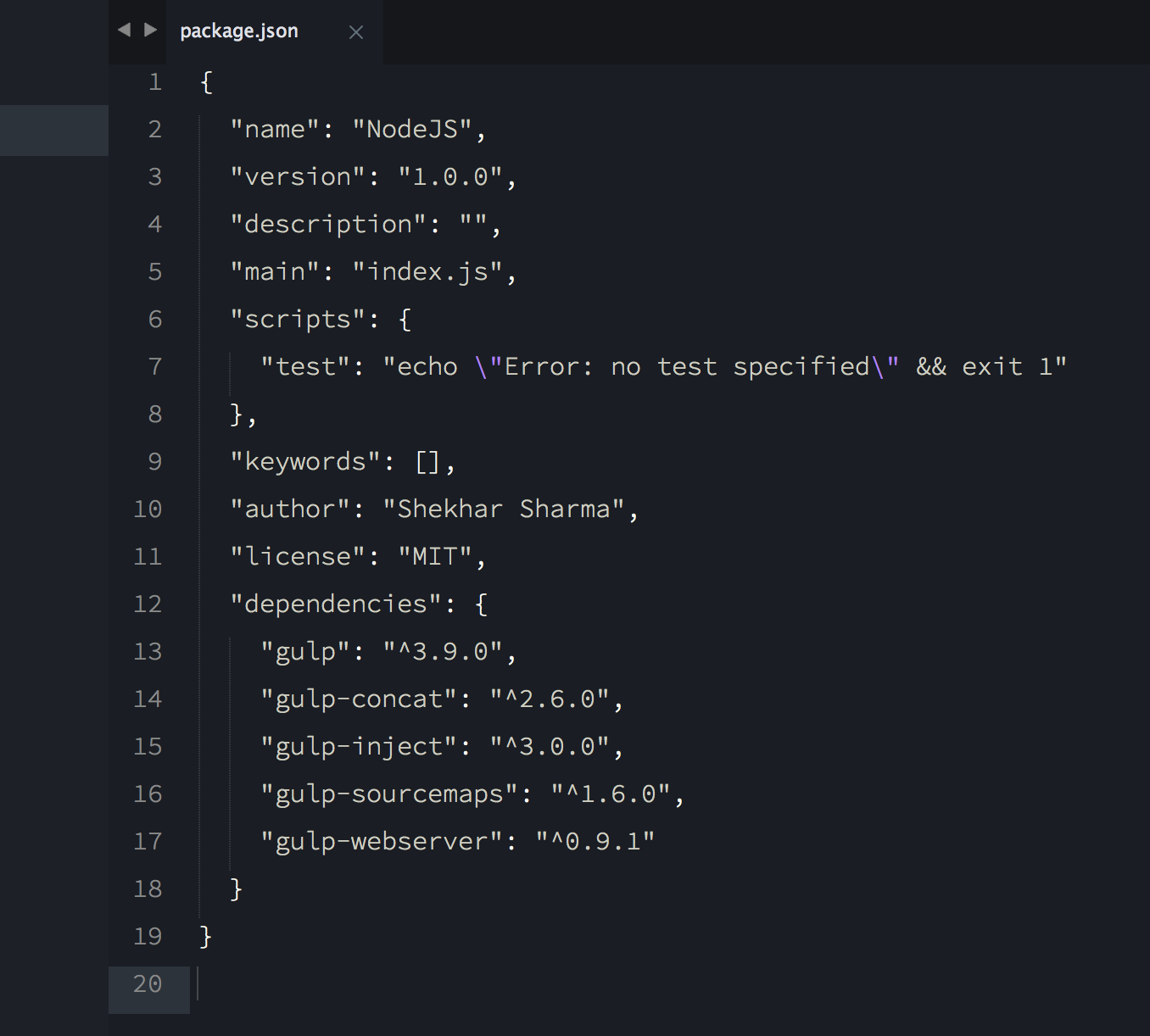
    Lets say your package.json looks like this:

    Screen Shot 2015-12-08 at 3.25.55 AM

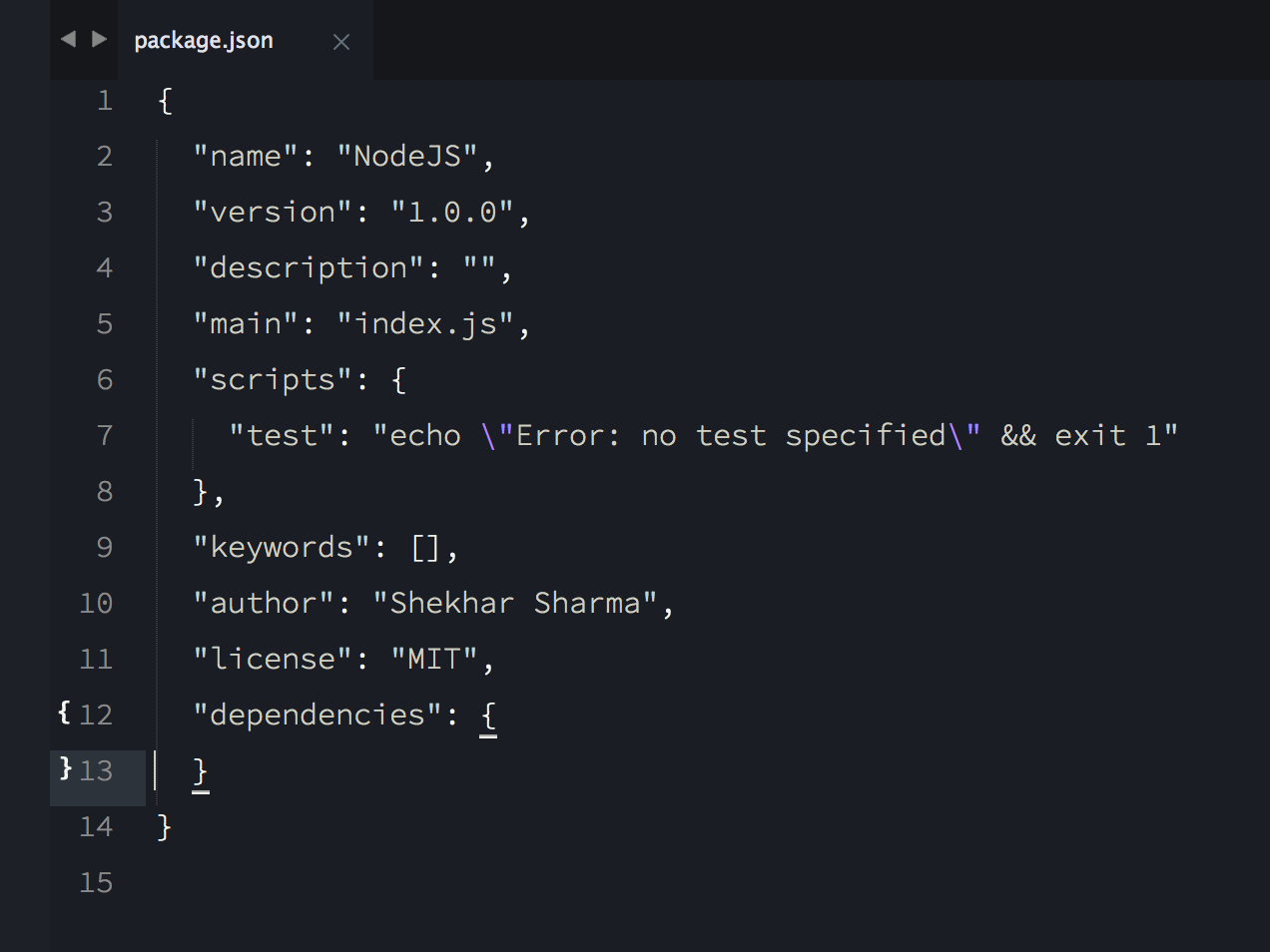
    Remove everything or may be just any particular npm which you wish to remove. Take an example, we wanted to remove all of it – then I would simply empty the dependencies like:

    Screen Shot 2015-12-08 at 3.27.40 AM

    Then run “npm prune” and voila. NPM will unbuild all of the node_modules folder which it didn’t find in the package.json but did locate in drive.

    You might be interested in:

    https://www.expiredqueues.com/youtube/why-i-never-make-a-youtube-video/
    I walk you through my procastination of how I never end up getting to the point.
  • How to set Cookies to share across all subdomains using JavaScript

    Browser Cookies, is a very handy feature that enables us as a web developer to do so many interactive programming. Recently since HTML5 raised up, its Web Storage is replacing this feature. But there is one area where Web Storage fails to achieve the result – subdomain access. There we have to again jump back for old school document.cookie method.

    In this very quick tutorial, lets discuss how we can setup browser cookies that can be accessed from all subdomains and root domain. But proceeding further requires basic knowledge of cookies, and if you need to learn, Tutorial Point has good article on JavaScript Cookies.

    Steps:

    1. Prepare the cookie name/value
    2. Get the top level domain and assign as .domain.com
    3. Set the path to root path=/
    4. Set Expires (optional)

    Lets set up a example cookie. Example take as ‘Last time report generated’ to showup across subdomains.

    
    //variables
    var LastReportGenerated="Jul 11 2013",
    baseDomain = '.expiredqueues.com',
    expireAfter = new Date();
    
    //setting up  cookie expire date after a week
    expireAfter.setDate(expireAfter.getDate() + 7);
    
    //now setup cookie
    document.cookie="Report={'ReportName':'MainReport', 'lastGenerated':" + LastReportGenerated + "}; domain=" + baseDomain + "; expires=" + expireAfter + "; path=/";


    Major thing to take care here is:

    Your domain must be in format of “.domain.com” – dot and root domain and your path=/ always. If you don’t setup your path=/, auto path will be saved as from where the cookies is being saved hence it wont be accessible across any subdomain.

    You can try copy paste code above in the Console, and see the result in Resource Panel. If you happen to successfully run the script above, you will get a preview:

    JavaScript Cookie

    Now that ‘Report’ cookie should be available across all subdomains like = main.cssjunction.com, tuts.cssjunction.com etc.

    You might be interested in:

  • Metro UI Form using HTML5 and CSS3

    Metro UI Form using HTML5 and CSS3

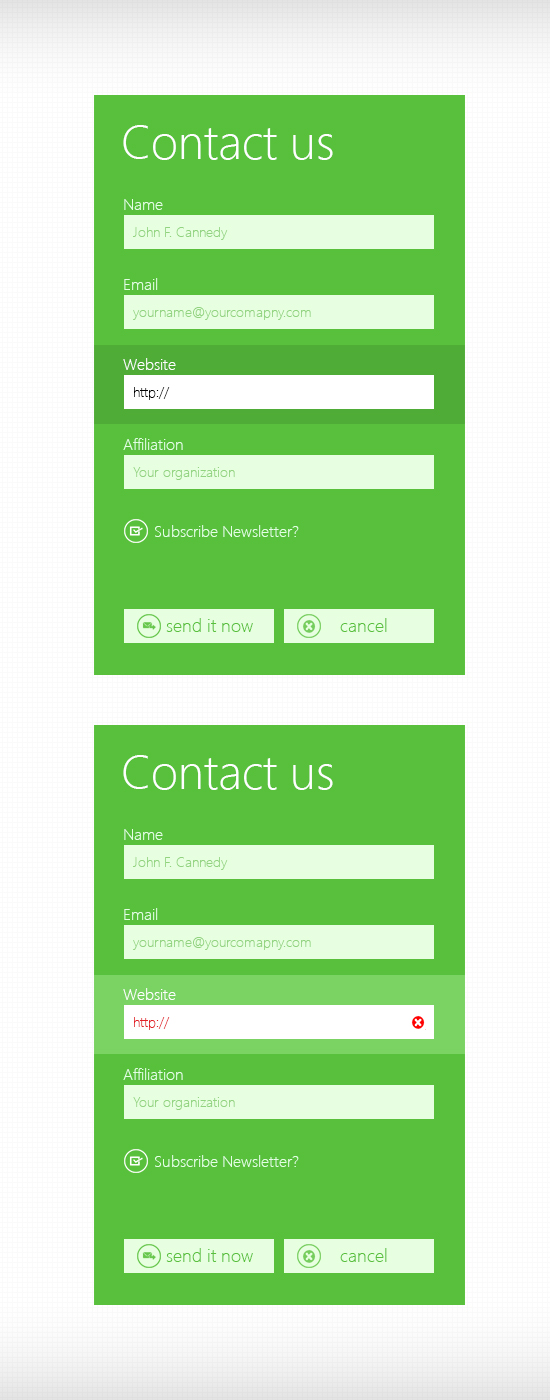
    Few months ago I had posted a PSD freebie for Metro UI Contact form. I received many requests saying for the HTML/CSS version of the same. So here is the form, coded using HTML5 and CSS3.

    A Quick preview:

    HTML/CSS Demo

    Metro Style Contact Form PSD

    Here you can download the HTML/CSS:

    Download

    Happy sharing!

  • CSS Icons for Better Web – Part I

    CSS Icons for Better Web – Part I

    Recently, I have been busy working on several mobile applications – both web and native apps. Most of them was User Centric and app was allowing them to set their own themes. This made my job as a CSS Developer a little trickier as I was using several icons with CSS sprites. Trying to come up with a better solution on how can I get rid of limited opportunity given by image sprites – I made a decision that CSS Icon should play the role here.

    Here is why I chose to do the same:

    • Very first, it’s very best for performance as there wont be any HTTP request and
    • CSS icons are modular – we can reuse and remake/style it based on condition.

    Today, I am going to share some of very basic icons – that we can create using CSS and use it right away- the way we wanted. This is a series of posts, will be posting more on coming days – more icons with CSS.

    Mean time, you can check CSS3 Document Icon, written by me for Nettus+.

    Quick Preview

    Preview of CSS3 Arrow Icons

    Above preview, if you try to produce by using image icon – you gotta use 4 different images. But if you write by CSS, NO IMAGE is required. Even if you need to change the color and you did use image, you will need another set of images with color changed in Photoshop and reusing – causing bit more load to your page. By CSS – you can have as many colors as your want – much more efficient, efficient – that’s why I called it – CSS Icons for better web.

    How to  – Steps:

    1. A simple class with border on right & top – no background.
    2. Then Rotate it to different angles (45 for right, 135 for down, 225 for left and -45 for up.)

    Lets Do it.

    1. Any Element with Class .arrow

    <i class="arrow"> </i>
    

    Your CSS

    .arrow {
        display:inline-block;
        width:7px;
        height:7px;
        line-height:7px;
        border-top:3px solid #aaa;
        border-right:3px solid #aaa;
        -ms-transform:rotate(45deg);
        -moz-transform:rotate(45deg);
        -webkit-transform:rotate(45deg);
        transform:rotate(45deg);
    }
    

    Now create three more classes with different different rotation and apply to HTML along with the main class.

    .arrow-down {
        -ms-transform:rotate(135deg);
        -moz-transform:rotate(135deg);
        -webkit-transform:rotate(135deg);
        transform:rotate(135deg);
    }
    .arrow-left {
        -ms-transform:rotate(225deg);
        -moz-transform:rotate(225deg);
        -webkit-transform:rotate(225deg);
        transform:rotate(225deg);
    }
    .arrow-up{
        -ms-transform:rotate(-45deg);
        -moz-transform:rotate(-45deg);
        -webkit-transform:rotate(-45deg);
        transform:rotate(-45deg);
    }
    

    Changing the arrow color on HOVER, (See how easy – think what we used to do with images):

    .arrow:hover {
        border-color:#444;
    }
    

    You can see the final preview here (See in Result Tab):

    And Here is a useful demonstration, (using :after pseudo element instead of separate HTML element to keep markup clean and more semantic) (See in Result Tab):

  • Top 5 Articles on HTML5 Audio Video

    Top 5 Articles on HTML5 Audio Video

    Learn HTML5 Audio Video

    1. Everything you need to know about HTML5 video and audio

    Here, Simon Pieters, from Opera, will walk you through everything basics you needed to know about HTML5 Audio & Video features. He says:

    This article aims to provide all the nitty-gritty details of HTML5 media, the DOM API, events, and so forth, so you can implement your own HTML5 player with fallback to old browsers.

    2. HTML5 Audio and Video: What you Must Know

    Bruce Lawson talks on Nettuts+ about must know facts regarding HTML5 Audio/Video.

    3. Getting started with the HTML5 Audio Video API

    Very quick & a short article to get you started on making your own media players on HTML5 Video.

    4. Using HTML5 Video and Audio in Modern Browsers

    This time, in-depth learning on API, learn about browser fall back & how to handle those legacy browsers – from SitePoint.

    5. How to Make Your Own Video Player On HTML5 Video

    Once again very depth article. This article will take you thoroughly on how you can create your very own media player using HTML5 Audio & Video.

    That’s it. Hope you will learn from very basic to creating your own full functional media players. Happy coding!

    PS: Image used in this post banner is taken from 356PSD.com

  • Detect Landscape/Portrait Mode using JavaScript

    Detecting device mode (landscape or portrait) using CSS3 is now very much easy and it is state of art. But it wont work on certain situations like I had. I failed to make @media queries detect device orientation on iPhone. So I came to write a JavaScript fix to get work done.

    Check my orientation test using CSS3 @media queries here. The demo page should show text ‘Portrait’ on portrait mode and ‘Landscape’ on respective mode. But it does not. You might want to try with you own device. Some of my friends said it is working.

    I Googled for the solutions, but I must say I couldn’t find any reliable one :(. If you prefer to use CSS3 media queries, check out the post on Stuff & Nonsense. And here it goes my JavaScript function that will detect the landscape/portrait mode.

    First, let us create a function called ‘checkOrientation‘ so that we can evoke it by just a name instead of repeating whole lines.

    Inside this function we will check the device orientation degree which we are going to take from window.oriantation method. If we get the degree 0 – its the mode portrait else its landscape.  Since we will be using window. orientation method, this function will only work in handheld devices. So here it goes our function:

    function checkOrientation(){
          var currMode = "";
    
          switch(window.orientation){
    
               case 0:
               currMode = "portrait";
               break;
    
               case -90:
               currMode = "landscape";
               break;
    
               case 90:
               currMode = "landscape";
               break;
    
               case 180:
               currMode = "landscape";
               break;
         }
         document.getElementsByTagName("body")[0].setAttribute("class", currMode);
    }
    

    I have used switch statement to set the currMode variable, which we are going to use as class on required html elements. I set that class on body.

    Now its time to call the function, you can call it directly or on window.load method. I think window.load method is better and safe. So lets call it:

    window.load = function() {
         checkOrientation();
    }
    

    When our page is ready, check the class of body element. We are done. But wait what if we change the orientation now? Yes, we need to update the class on orientation change.

    For this, we have window.onorientationchange method, which is also available on devices only. We will recall our function inside this method:

    window.onorientationchange = function(){
          checkOrientation();
    }
    

    Thats it. Now we are completely done. Check-out the Landscape/Portrait Mode detection demo.